Help
Get a photo WearCheck can read.
A clear photo makes every finding more useful. This guide also explains what the results mean, how previews work and what to do when something fails.
Taking the photo
 Works well
What a good photo has
One adult, standing
Only the person whose outfit you're checking. Uploading means you have their permission.
Head to feet in frame
Feet must be visible for any shoe finding or shoe preview.
Facing the camera
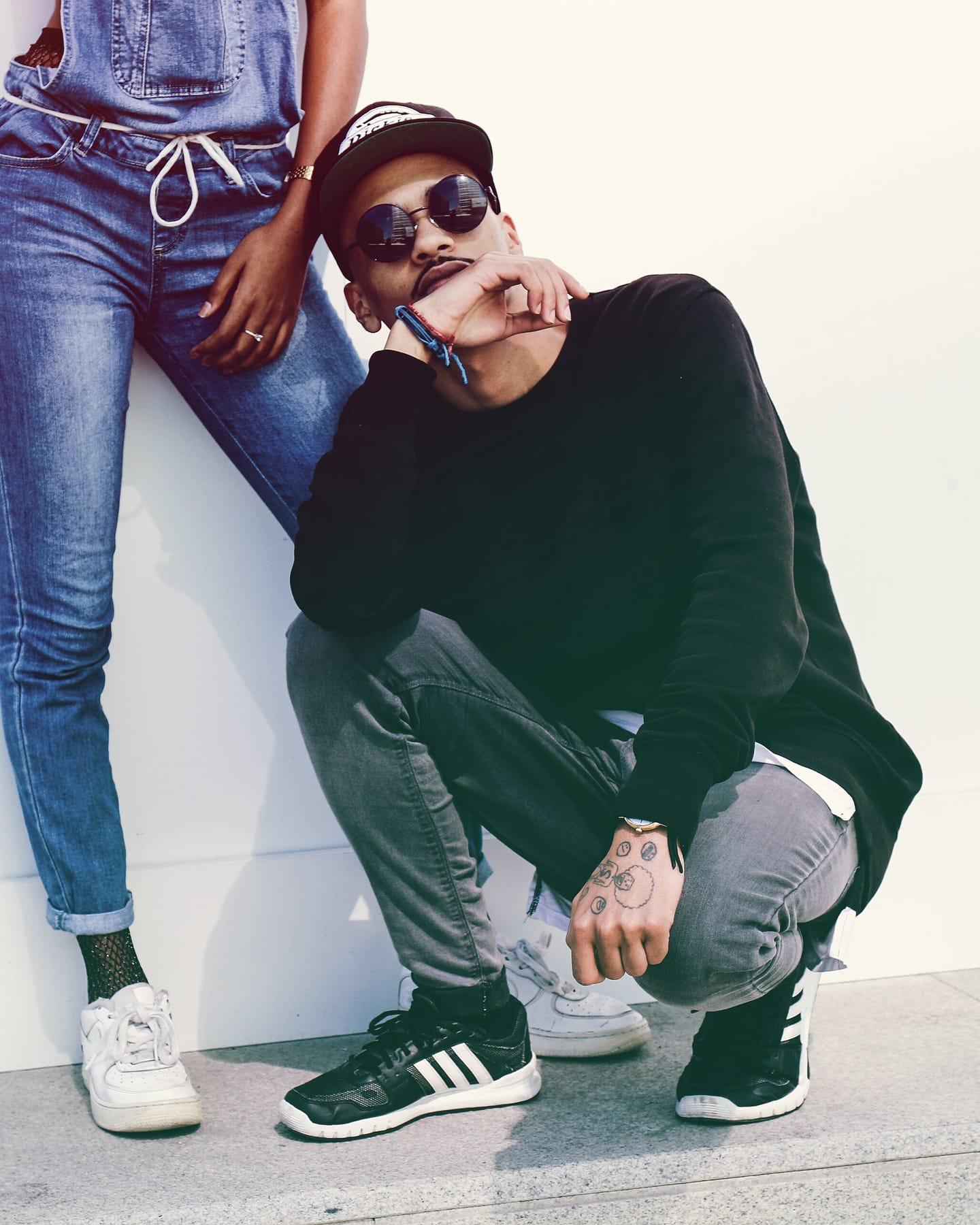
Front or a slight turn. Sitting or crouching hides the outfit.
Even daylight, plain background
Colour requests such as “no ivory” depend on it. Mirrors and busy rooms confuse the models.
 Avoid
Feet cut off
Shoes can’t be checked or previewed. You’ll be asked what you plan to wear.
 Avoid
More than one person
WearCheck can’t tell whose outfit to check, and the preview may refuse the photo.
 Avoid
Dim or coloured light
Colours become unreliable. Any colour finding will ask you to confirm the shade.
The cropped and darkened versions are edits of the same editorial photo, made to show each problem.
- Formats
- JPG, PNG or WebP. HEIC works if your browser can open it. PDFs aren’t supported — take a screenshot instead.
- Size
- At least 512 px on the short side; 1,000 px or more works best. Large photos are resized before upload.
- Privacy
- Location and camera details are stripped when the photo is re-encoded. More on privacy.
Adding the invitation
Upload a photo or screenshot of the invitation, or type the details yourself. WearCheck reads the text, then shows you a list of requirements to edit and confirm. Nothing is assessed until you confirm.
Wording such as “dress to impress” or “festive chic” doesn’t define particular clothes. WearCheck says it’s ambiguous rather than inventing rules, and you can add context such as the venue.
“From invitation” is used only when the exact words appear in the invitation text. Anything the model inferred stays a suggestion until you approve it.
Reading the findings
The assessment uses only the requirements you confirmed and what is visible in your photo. Each finding names the requirement behind it; select “Why?” to see the evidence.
Looks compatible with your requirements
Nothing you confirmed conflicts with what is visible. It is not the host's approval.
One change worth considering
A practical point or recommendation — heels on a lawn, say. Not a broken rule.
Potential conflict
Only when an explicit requirement you confirmed clearly contradicts something visible or something you told us.
Not enough information
Something that matters isn't visible, or one question needs your answer first.
WearCheck won’t claim certainty about formality, religious or cultural dress, colour in poor light, or whether the host will approve. In those cases it asks you a specific question.
Previews
When a change is justified — or if you want to explore — you can choose one alternative: a pair of shoes, a dress or full outfit, a top, or an outer layer. YouCam’s virtual try-on renders it onto your photo.
You can use one of WearCheck’s visual references (they’re styling references, not shop listings) or upload a photo of an item you own.
A preview can take a minute or more. You can leave the page and come back; the check remembers it. Each preview uses paid provider credit, so a failed preview is never retried automatically — you choose whether to try again.
A preview isn’t proof of size, fit, fabric, comfort, or how shoes handle grass or gravel, and it may change details such as hands, hair or background.
The decision card
Whatever you decide, you can download a card that summarises the event, the requirements, the findings and your decision — including when you keep your outfit unchanged. If you chose a change, it shows the original and the preview side by side. The card is an image file; only people you send it to will see it.
Troubleshooting
Ready when you are.